Implementing the MDXNetwork Explicit SDK into your application
To implement the MDXNetwork Explicit SDK into your application, do the following:
- Add
MdxCore.framework,MdxNetwork.frameworkandCitrixLogger.frameworkto your project. On the project properties, under the General tab, add all 3 frameworks listed above to the Embedded Binaries section.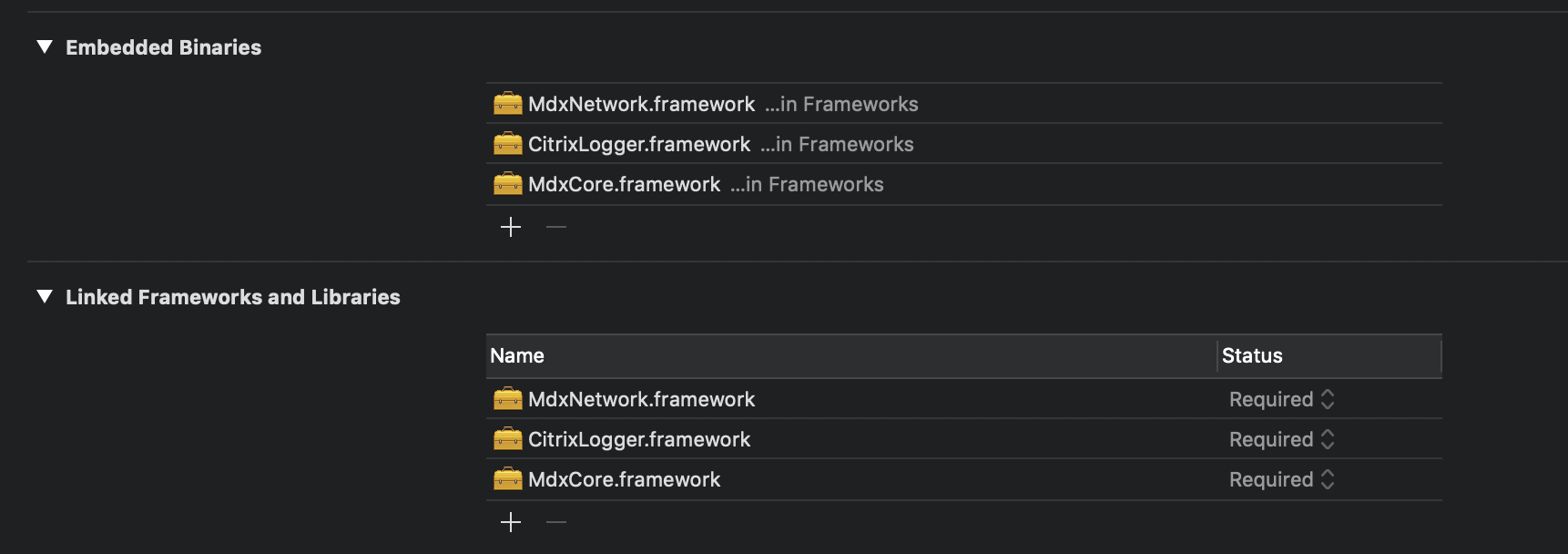
- On the project properties under the Info tab, add a new URL Type with URL Scheme which starts with
com.citrix.sso.[uniquename].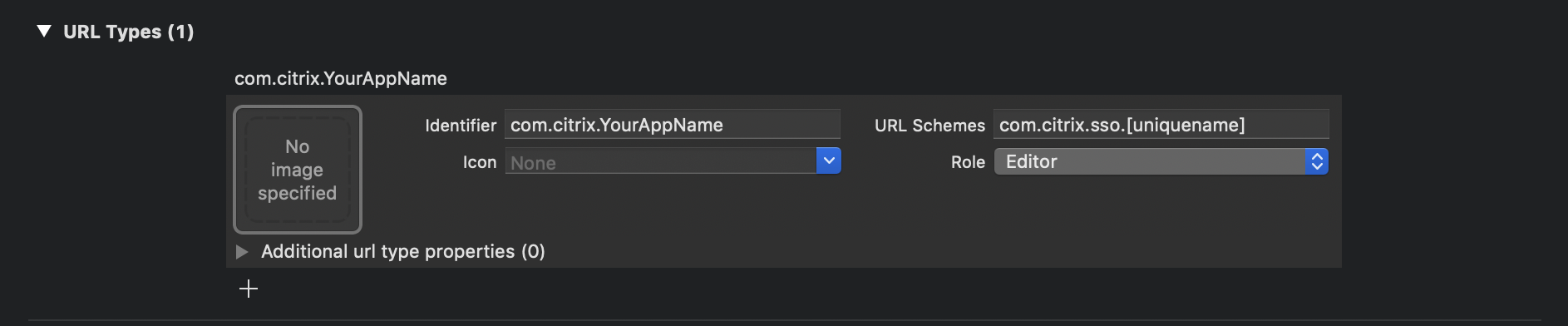
- On the project properties under the Build Settings tab set Enable BitCode to No

- On the project properties under Capabilities tab set Keychain Sharing to On
- Add
com.citrix.mdxto the list of Keychain Groups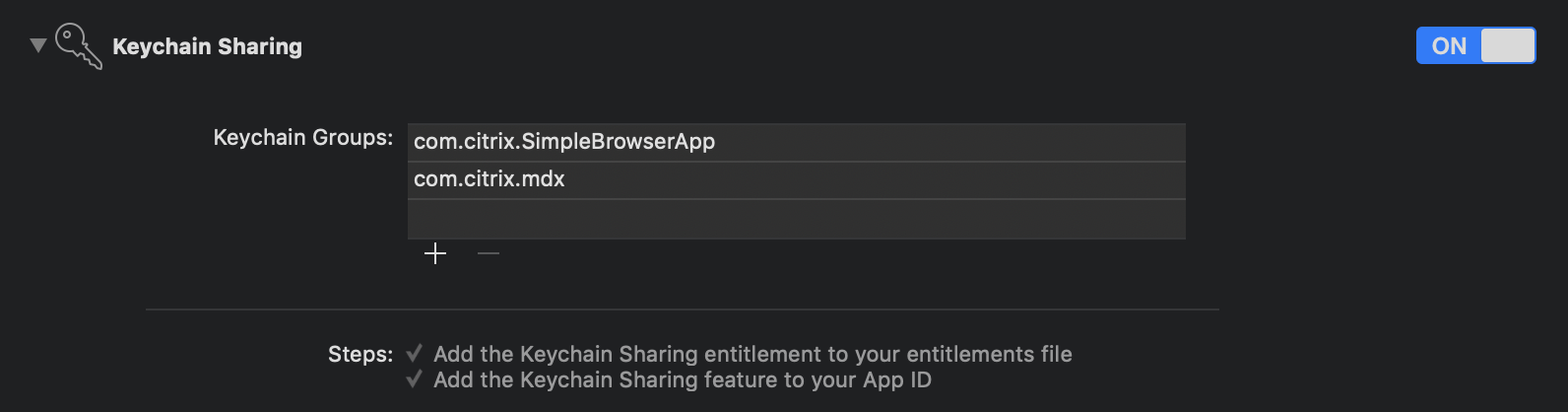
-
Import
<MdxNetwork/MdxNetwork.h>and<MdxCore/MdxCore.h>into yourAppDelegate.mfile.// // AppDelegate.m // Your App Name here // // Created by Your Name Here on 3/21/19. // Copyright © 2019 Your Company Name Here, LLC. All rights reserved. // #import "AppDelegate.h" #import <MdxCore/MdxCore.h> #import <MdxNetwork/MdxNetwork.h>
-
In your
AppDelegate.mfile, override[AppDelegate application: openURL: options:]call so that it callsMdxConfigManagerin the following manner:- (BOOL)application:(UIApplication *)app openURL:(NSURL *)url options:(NSDictionary<UIApplicationOpenURLOptionsKey,id> *)options { return [MdxConfigManager application:app openURL:url options:options]; }
-
Still in the
AppDelegate.min your applicationdidFinishLaunchingWithOptionsadd a call to [SmartNetwork initializeSmartNetwork].- (BOOL)application:(UIApplication *)application didFinishLaunchingWithOptions:(NSDictionary *)launchOptions { // Override point for customization after application launch. [SmartNetwork initializeSmartNetwork]; return YES; }
-
Back on the project properties under the Build Phases tab add a new Run Script phase with the following script.
# Type a script or drag a script file from your workspace to insert its path.
export STOREURL="http://www.citrix.com"
export APPTYPE="sdkapp"
export PACKAGEID="" #Please run uuidgen at the command line and paste the output value in the PACKAGEID variable
export APPIDPREFIX="" #Your apple developer team ID - NPB9J4KRXA
export TOOLKIT_DIR="$PROJECT_DIR/Frameworks/MdxCore.framework"
#Ensure that the TOOLKIT_DIR property points to the location where the MdxCore.framework resides. The default is the Frameworks folder in your project.
if [ -z "${PACKAGEID}" ]
then
echo "PACKAGEID variable was not found or was empty, please run uuidgen at the command line and paste the output value in the PACKAGEID variable in your post build script."
exit 1
else
"$TOOLKIT_DIR/CGAppCLPrepTool" SdkPrep -in "$CONFIGURATION_BUILD_DIR/$EXECUTABLE_FOLDER_PATH" -out "$CONFIGURATION_BUILD_DIR/$EXECUTABLE_NAME.mdx" -storeURL "${STOREURL}" -appType "${APPTYPE}" -packageId "${PACKAGEID}" -entitlements "$SRCROOT/$PROJECT/$PROJECT.entitlements" -appIdPrefix "${APPIDPREFIX}" -minPlatform "9.0"
fi
-
Ensure that you run
uuidgencommand in your command line and paste the newly generated uuid in the PACKAGEID field. - Ensure that you put your app id prefix in the APPIDPREFIX field. This ID can be found in the Apple Developer portal under the AppIDs section. This is usually the team ID but it can be different.

- Ensure that the
TOOLKIT_DIRproperty points to the location where the MdxCore.framework resides. The default is the Frameworks folder in your project.
Note
You are required to have Icons set up for your app. And in particular your a 60x60 icon (this is your 20x20@3x icon) must be in a PNG format and must be named "AppIcon60x60.png"